
Getting started & setup
Migrating data to ClinicSoftware
In short
This guide explains Migrating data to ClinicSoftware in the Getting started & setup area of ClinicSoftware. It provides a clear operational explanation of how the capability works, then outlines the practical benefits for saving staff time, converting clients and leads, and protecting clinic revenue.
On this page
Overview
This guide explains Migrating data to ClinicSoftware in the Getting started & setup area of ClinicSoftware. It provides a clear operational explanation of how the capability works, then outlines the practical benefits for saving staff time, converting clients and leads, and protecting clinic revenue.
How it works
IMPORTING DATA
To import your data go to Admin Area => Data Migration.
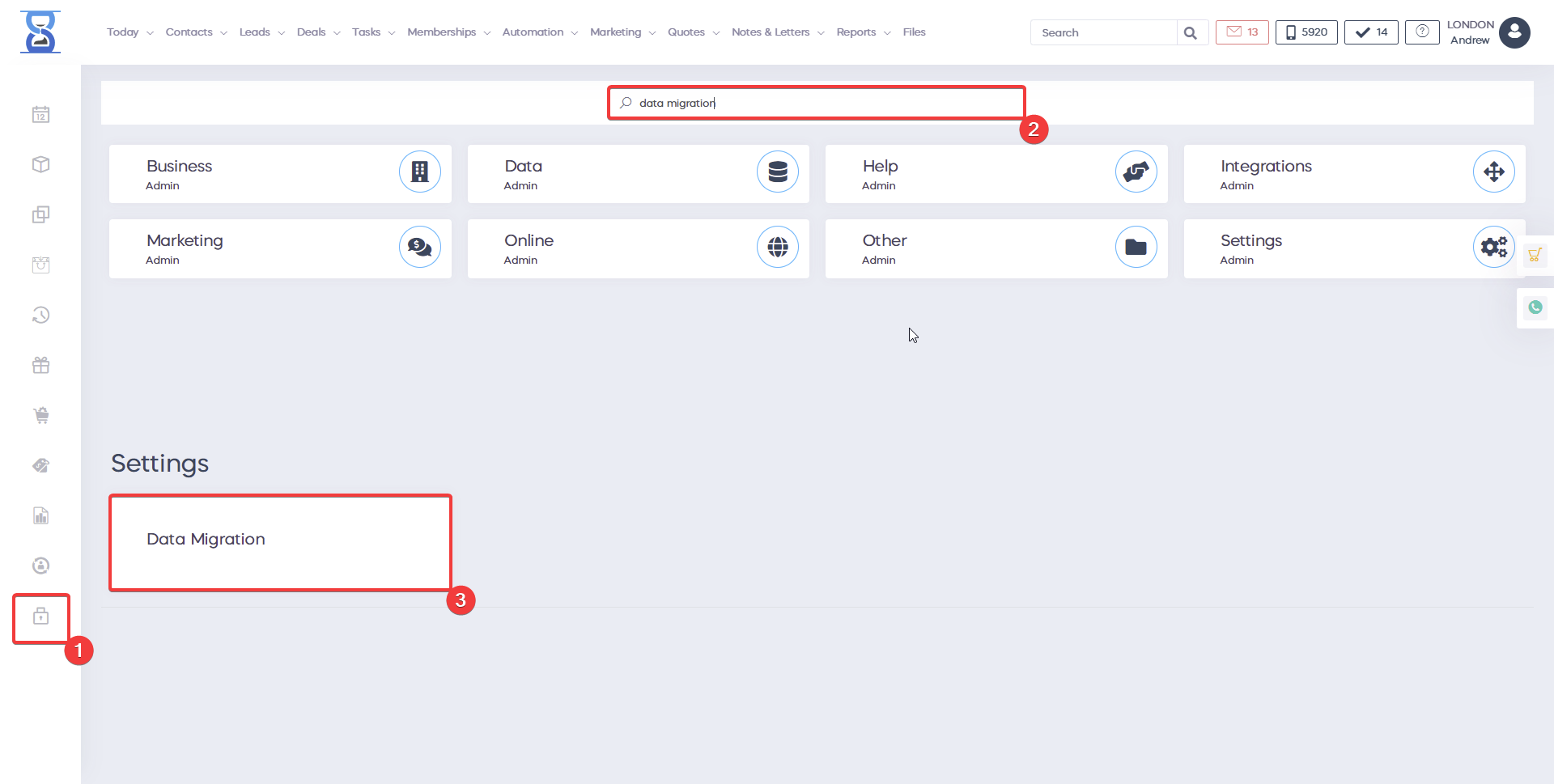
After clicking on Data Migration, a page will appear where you can select the type of import you wish to perform, including Clients, Appointments, Products, Receipts, Services, Courses, Tasks, and Clinical notes.
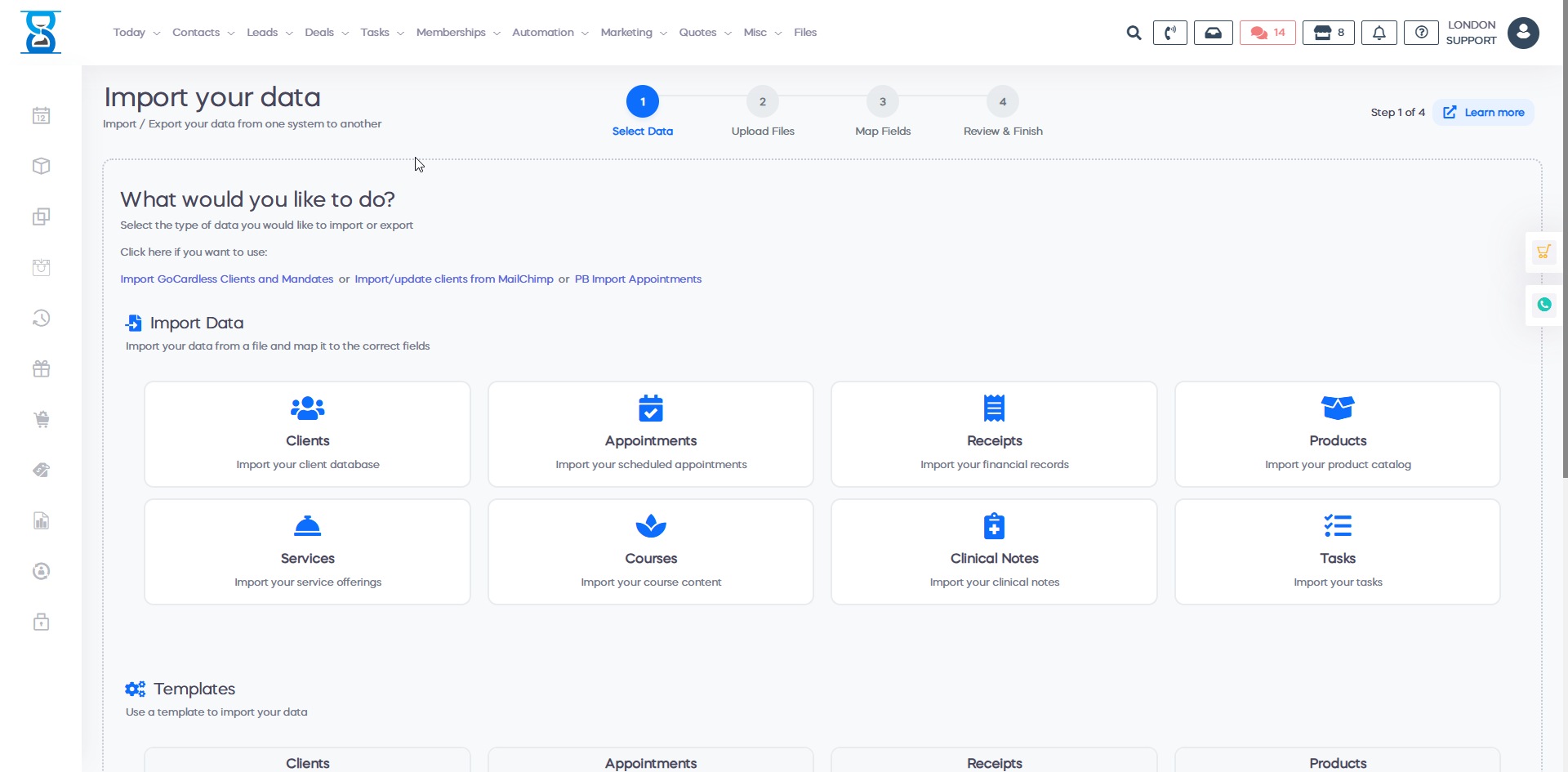
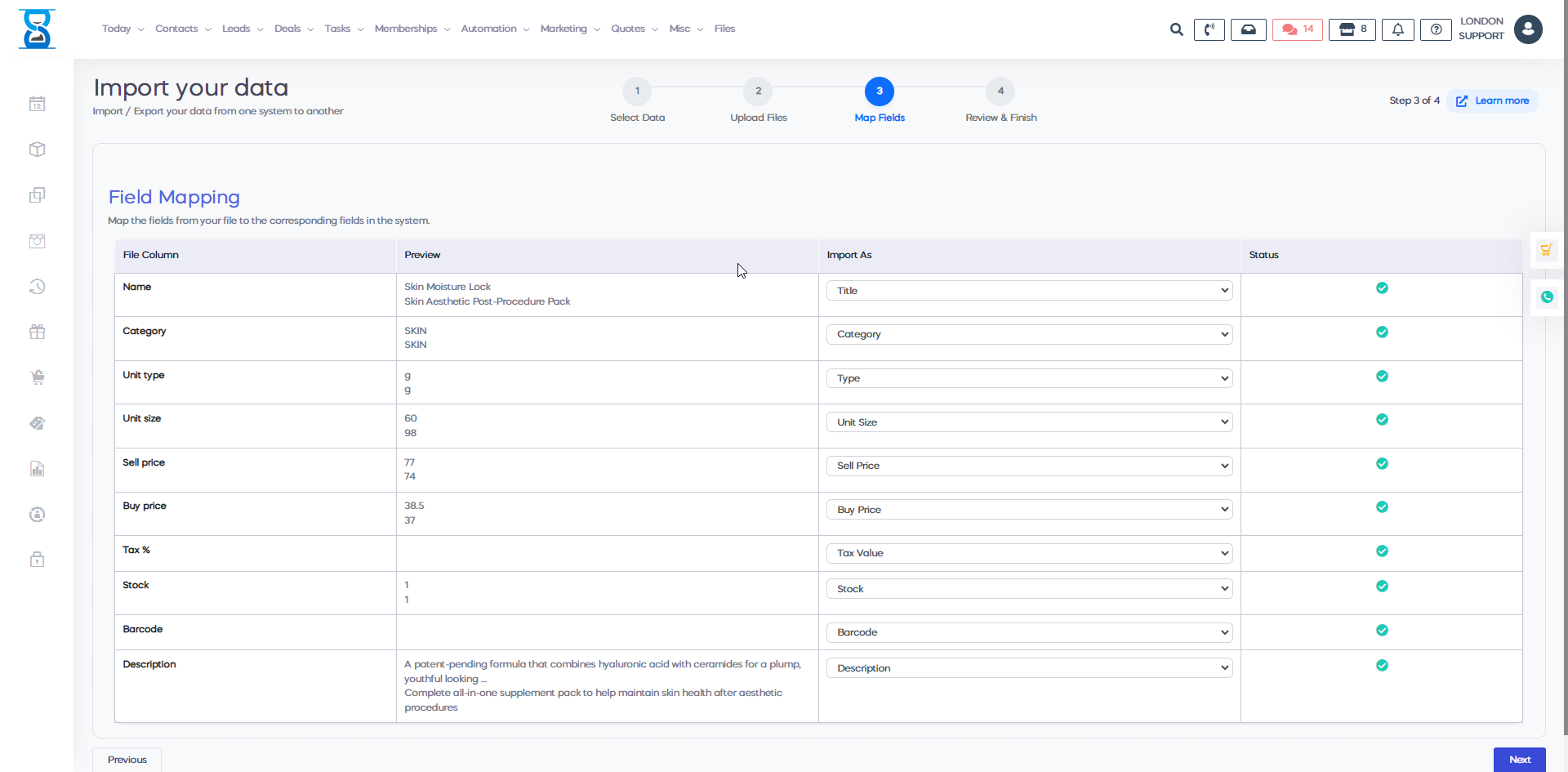
Select the file you wish to import and select Next. In the following step, ensure that each column in your file corresponds correctly to the fields in the system. Once everything is aligned, select Next To proceed.
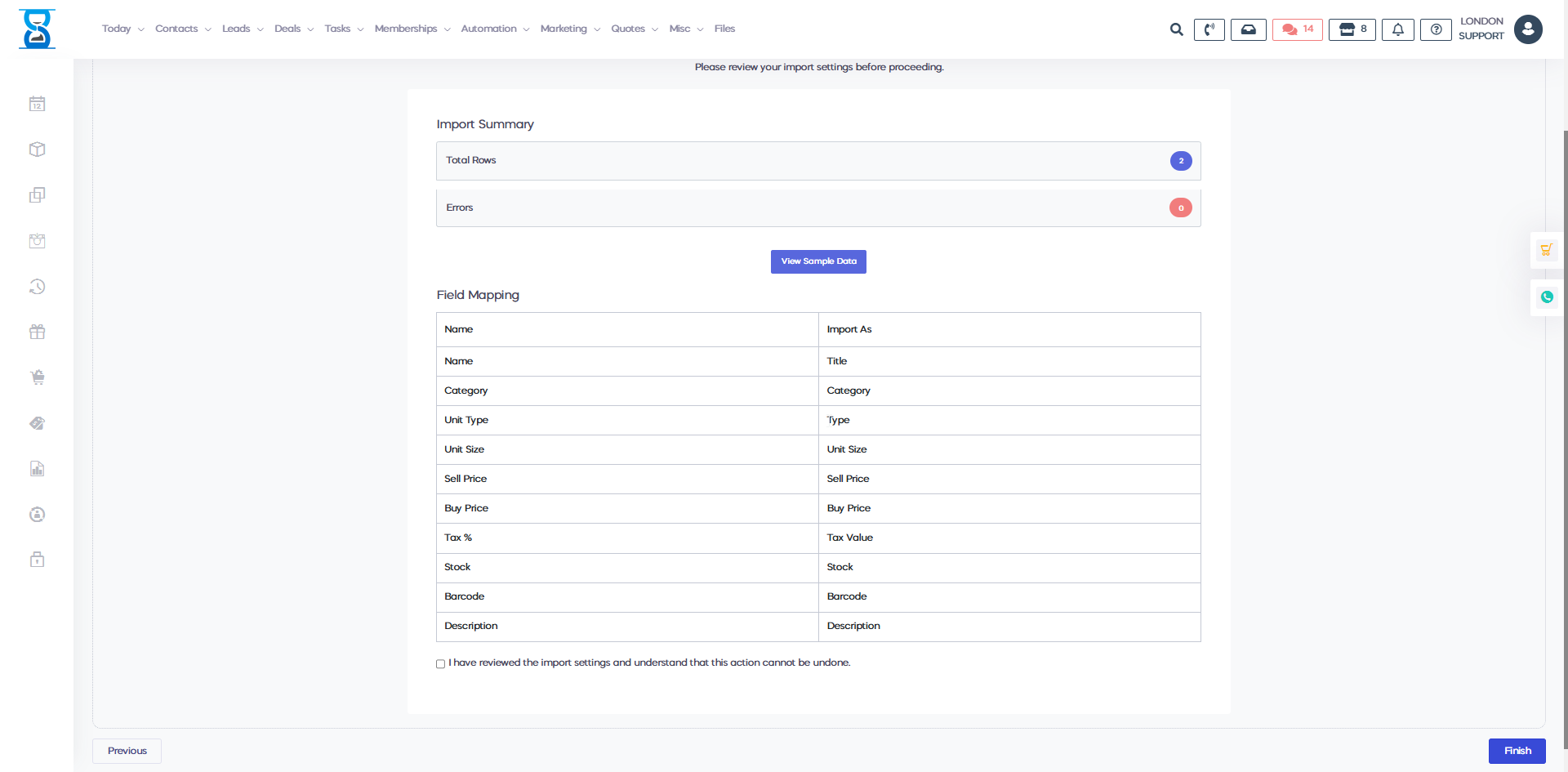
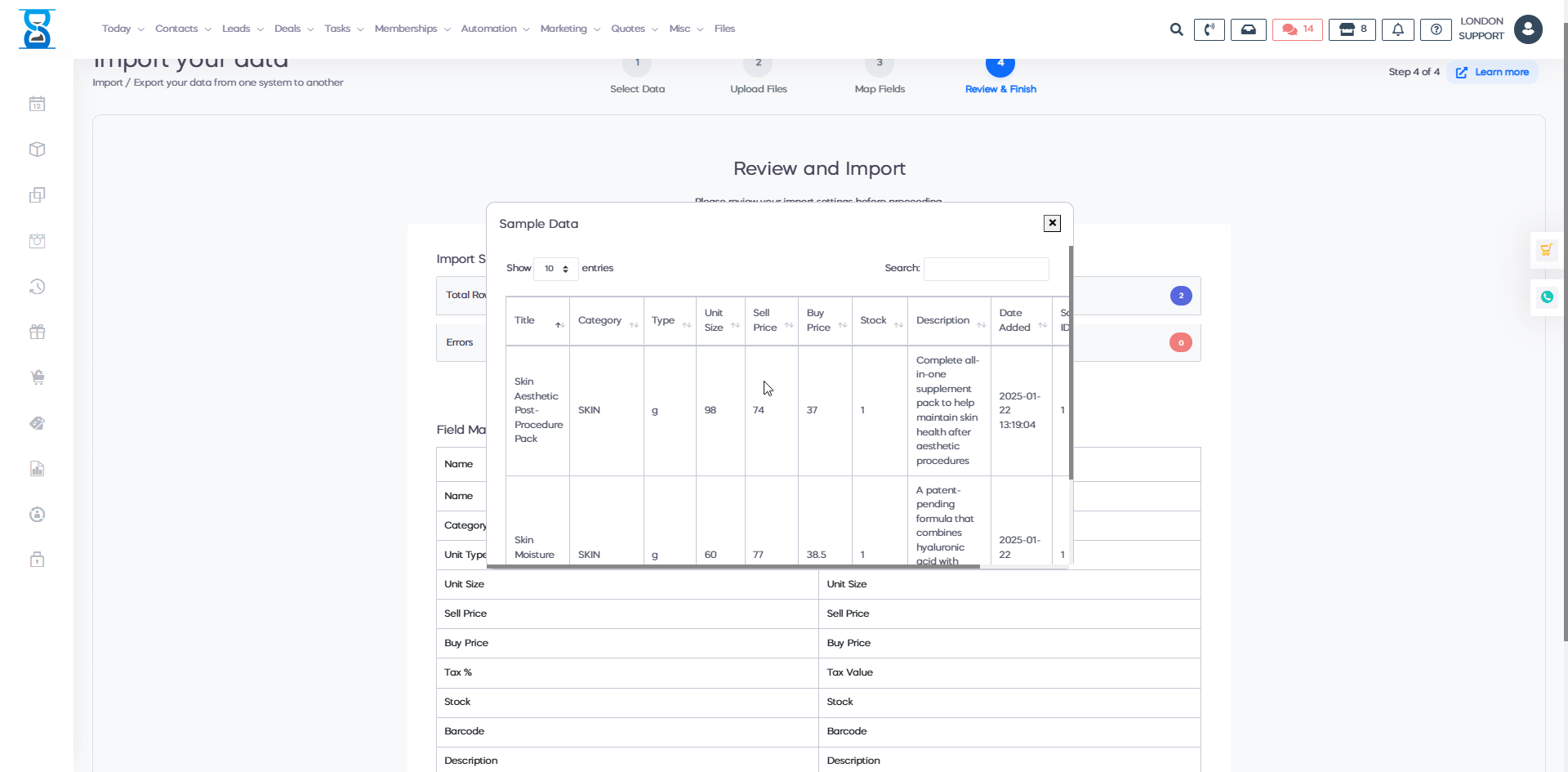
In the final step, you can review your import and check for any errors. If no errors are present, select Preview, and then select Finish To complete the process.
Benefits for your clinic
- Save time: Reduces set-up friction so new staff can learn Migrating data to ClinicSoftware quickly and follow a consistent process from day one.
- Win clients and leads: A clear foundation helps your team capture enquiries correctly and avoid losing potential clients during onboarding.
- Generate revenue: Faster, more reliable day-to-day operation protects appointment capacity and reduces costly mistakes that delay billing.