
Getting started & setup
Reports settings
In short
This guide explains Reports settings in the Getting started & setup area of ClinicSoftware. It provides a clear operational explanation of how the capability works, then outlines the practical benefits for saving staff time, converting clients and leads, and protecting clinic revenue.
On this page
Overview
This guide explains Reports settings in the Getting started & setup area of ClinicSoftware. It provides a clear operational explanation of how the capability works, then outlines the practical benefits for saving staff time, converting clients and leads, and protecting clinic revenue.
How it works
From this page, you can configure the parameters of certain reports (E.g. KPI and Staff Performance reports).
The parameters are saved in 2 variants: “Default Value” and “Salon Value”.
The “Default Value” is used when all locations are selected in the reports.
The “Salon Value” is used when a single location is selected in the reports.
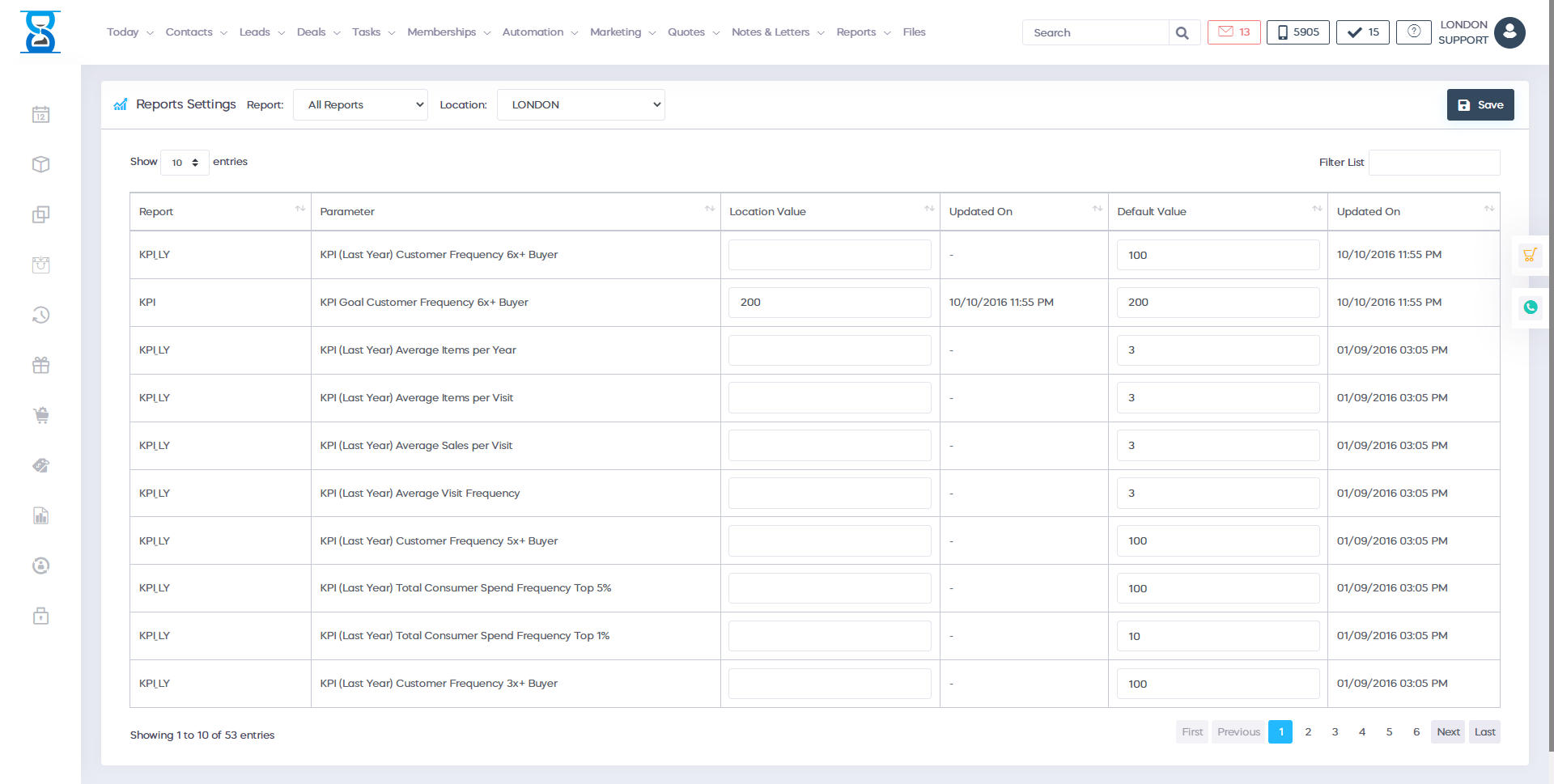
To view the parameters for a different location, use the location drop box located in the top right section of the page.
To display the parameters of only one report, use the report drop box from the top section.

To filter the list/search for a parameter, use the “Filter List” field.

After you have completed the modifications, select the “Save” button from the top section to save the changes.

Benefits for your clinic
- Save time: Provides ready-made insight for Reports settings, removing the need to assemble performance numbers manually.
- Win clients and leads: Highlights where enquiries stall so managers can improve conversion processes.
- Generate revenue: Clear commercial visibility helps the clinic act quickly on underperforming services, staff capacity or sales opportunities.